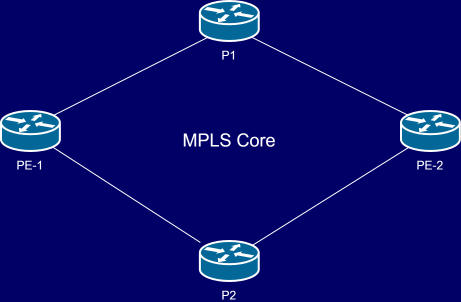
Scenario
A service provider needs a core network that is able to move data efficiently between customers and the internet. It’s important that the core is scalable, and allows the provider to offer services such as Layer 3 VPNs, Layer 2 VPNs or VPLS, and VXLAN.
Method
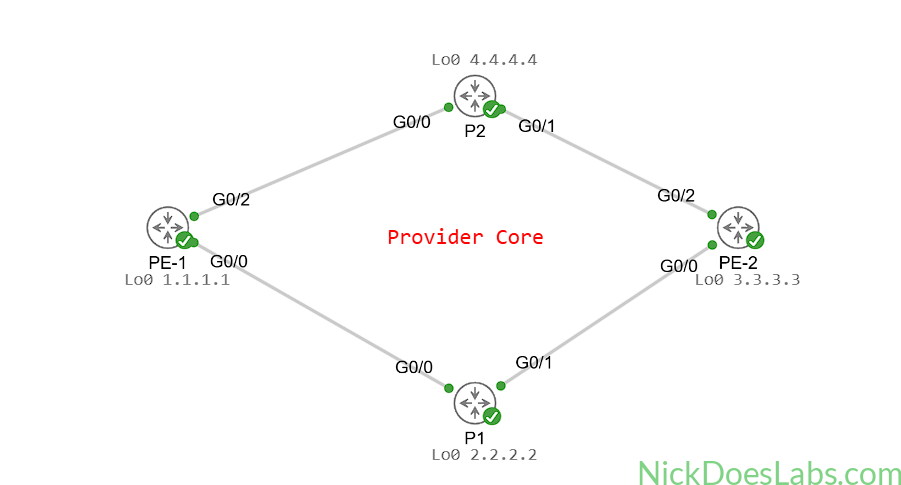
To accomplish this we will construct a service provider core made of 2 provider routers and 2 provider edge routers. These four routers will use IS-IS as their interior gateway protocol in order to establish reachability between them. We won’t be using IP addresses on the point to point links inside this provider core, as this isn’t needed for IS-IS and reduces complexity. Each provider router will use a loopback to identify itself and communicate with other routers. The provider edge (PE) routers will be responsible for providing service and connectivity to the customer. The provider core (P) routers will be responsible for routing traffic as fast as possible using MPLS.
Equipment
- Provider Edge Routers (XRd)
- PE-1
- PE-2
- Provider Core Routers (XRd)
- P1
- P2
Step 1 – Adding and Staging the Nodes
We’ll start by adding four XRd nodes to our lab and interconnecting them as follows
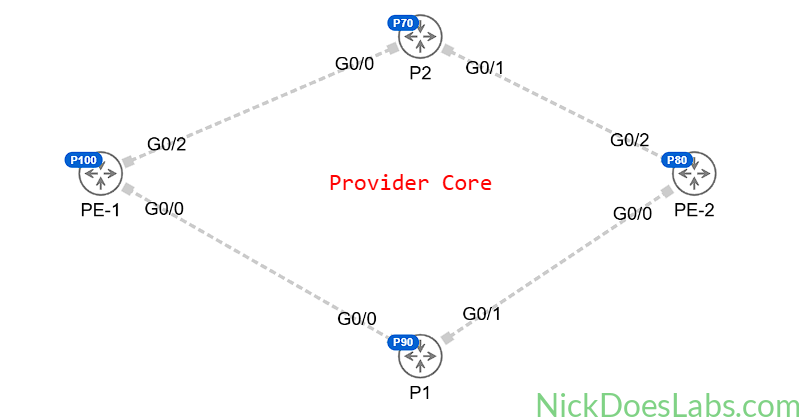
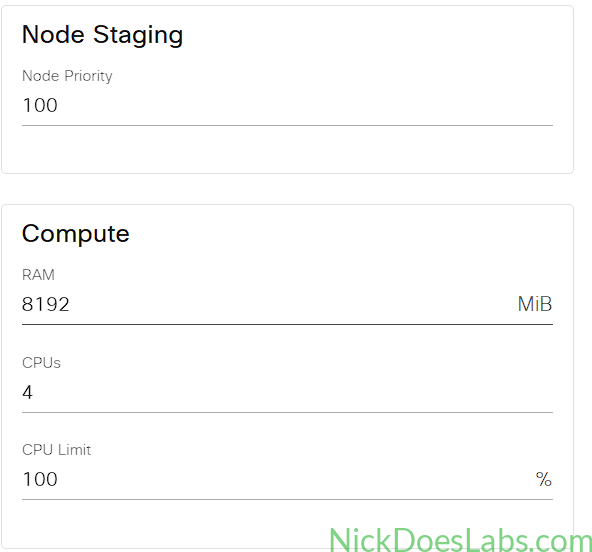
Make sure to enable node staging and stagger the priorities for these nodes. The XRd image is resource heavy and if they all try to boot at the same time it will cause issues. Also make sure each XRd node gets at least 8gb of ram and 4 vCPUs. IOS XR is a virtualized platform so these nodes will be performing nested virtualization. You’ll need to make sure that your host supports that as well.
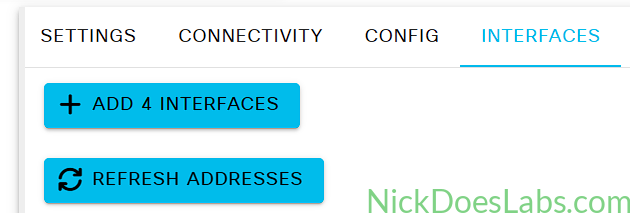
Finally, before turning on the nodes, make sure to add 4 interfaces to the PE nodes since we will need more than the default 4 interfaces.
Once these settings are all correct, you can go ahead and start the nodes.
Step 2 – Configuring Loopbacks
On each router we will create an interface named Loopback 0 and assign it a unique IP. Now is a good time to set our hostnames and domain name too. Example:
config
hostname PE-1
domain name nickdoeslabs.com
int Lo0
ip address 1.1.1.1 255.255.255.255
no shutdown
commit
IOS XR uses “commit” to implement and save changes unlike IOS XE. I’m using the following loopback IPs for this topology.
| Router | Loopback |
|---|---|
| PE-1 | 1.1.1.1 |
| PE-2 | 3.3.3.3 |
| P1 | 2.2.2.2 |
| P2 | 4.4.4.4 |
Step 3 – Configuring IS-IS
With our Loopbacks configured we will begin configuring IS-IS. First we’ll enable all of the interfaces connecting to other routers. We’ll also need to configure them as “ipv4 point-to-point” and “ip unnumbered Loopback0”. This lets us use the links without having to assign them IP addresses. You can imagine that at scale, having a separate /30 subnet for each link between routers can become hard to manage.
Example config on PE-1:
config
!
interface GigabitEthernet0/0/0/0
 ipv4 point-to-point
 ipv4 unnumbered Loopback0
 no shutdown
!
interface GigabitEthernet0/0/0/2
 ipv4 point-to-point
 ipv4 unnumbered Loopback0
 no shutdown
!
commit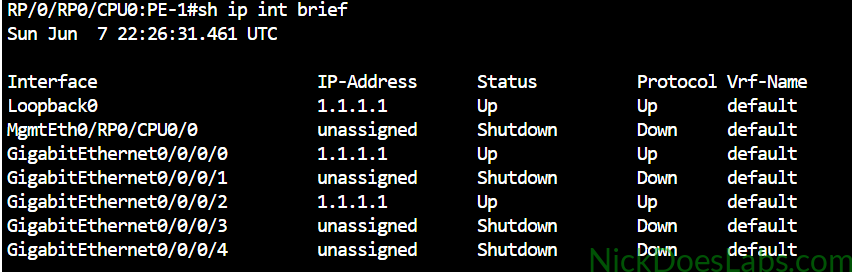
At this point our interfaces should all be Up/Up and the only IP addresses configured are the Loopbacks. Next we will create an IS-IS process for each router, naming it CORE. The NET Address will have an area of 1 for all routers, and the host ID will align with the Loopback for each router. Ex. PE-1 will have a host ID of 1. Here’s an example of the config on PE-1. Be sure to configure the correct interfaces and NET Addresses for each router.
config
!
router isis CORE
 net 49.0001.0000.0000.0001.00
 address-family ipv4 unicast
 !
 interface Loopback0
  passive
  address-family ipv4 unicast
  !
 !
 interface GigabitEthernet0/0/0/0
  point-to-point
  address-family ipv4 unicast
  !
 interface GigabitEthernet0/0/0/2
  point-to-point
  address-family ipv4 unicast
!
commit
!
end
| Router | Net Address |
|---|---|
| PE-1 | 49.0001.0000.0000.0001.00 |
| PE-2 | 49.0001.0000.0000.0003.00 |
| P1 | 49.0001.0000.0000.0002.00 |
| P2 | 49.0001.0000.0000.0004.00 |
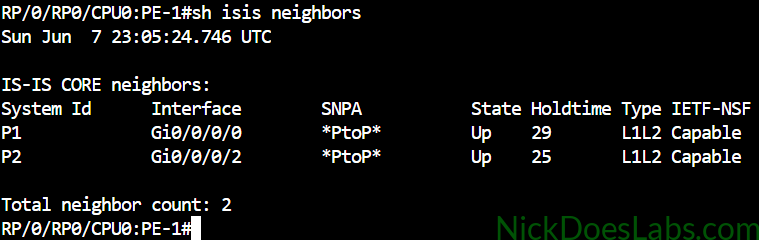
In a future lab we will look deeper into IS-IS configuration and Level-1 vs Level-2. For now for the sake of simplicity and versatility all routers are L1/L2 and in Area 1. Once the routers are configured they should form neighborships which you can verify with “show isis neighbors”.
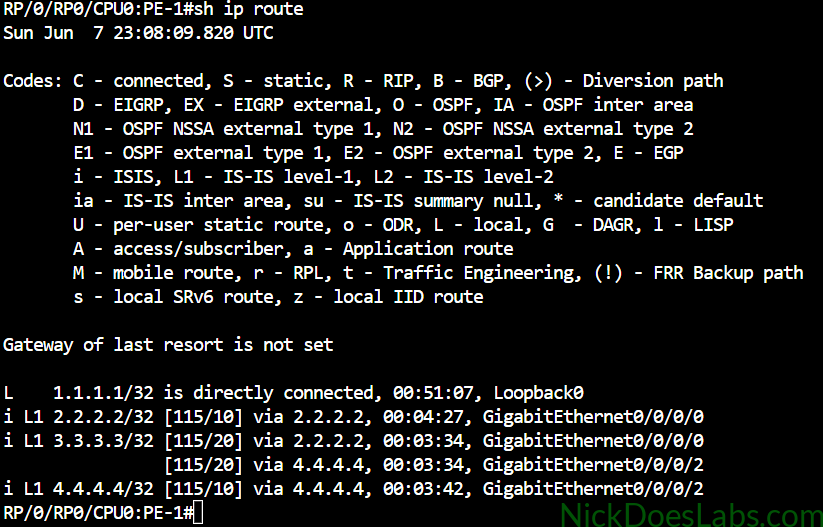
More importantly, they will exchange routing information for their Loopbacks. Every router now knows how to get to every other router.
Step 4 – Configuring MPLS
Configuring MPLS is pretty straightforward. We are going to run the following commands on each router. Make sure the router-id matches the router’s loopback and that you are enabling MPLS on the correct interfaces. We are enabling MPLS OAM as well to help verify connectivity later. Example on PE-1
config
!
mpls oam
!
mpls ldp
router-id 1.1.1.1
interface gigabitEthernet 0/0/0/0
interface gigabitEthernet 0/0/0/2
!
commit
!
end
| Router | MPLS Router ID |
|---|---|
| PE-1 | 1.1.1.1 |
| PE-2 | 3.3.3.3 |
| P1 | 2.2.2.2 |
| P2 | 4.4.4.4 |
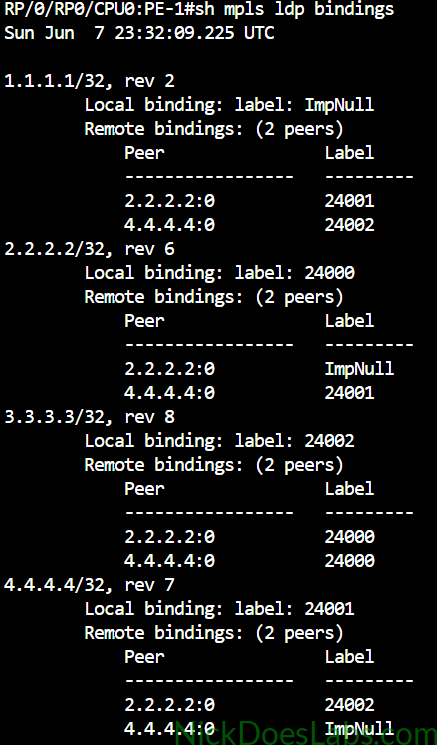
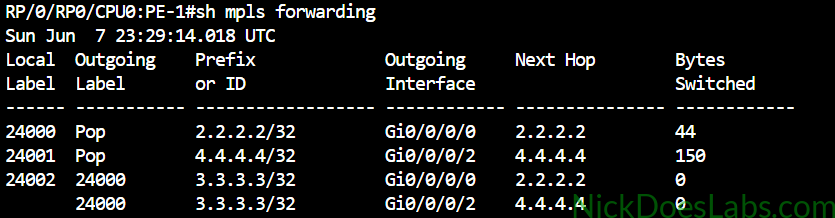
Once that is done, MPLS LDP will automatically generate and distribute labels for all the routers in the core. You can then verify this with “show mpls forwarding” to view the mpls forwarding database. You can also run “show mpls ldp bindings” to verify that each router has label bindings for every other router.
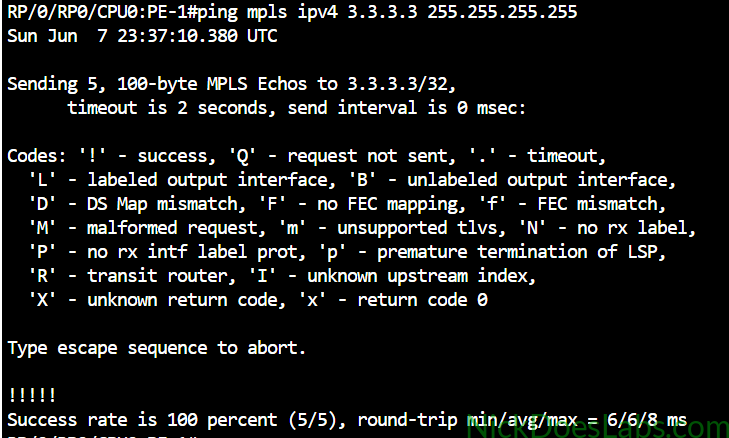
Since we’ve enabled MPLS OAM we can test mpls by running “ping mpls ipv4 3.3.3.3 255.255.255.255” on PE-1
And that’s it! we now have a fully functional service-provider MPLS core in Cisco Modeling Labs. This will be the basis for many other labs where we will actually implement services such as L3VPN and L2VPN.
If you’d like to download the lab.yaml file for this lab as well as the router configurations, they are available for free here. Want notifications when new labs are released? Join the newsletter.